
Workspace settings
Open a workspace and select Settings. The sections are Info, Assistant, Indexing, Members, and Danger Zone. Your permissions determine which controls are available.
The information icon beside a setting opens an explanation of that control. Save buttons become available when you make a change; after saving, select OK in the confirmation. Select any screenshot to open it at full size.
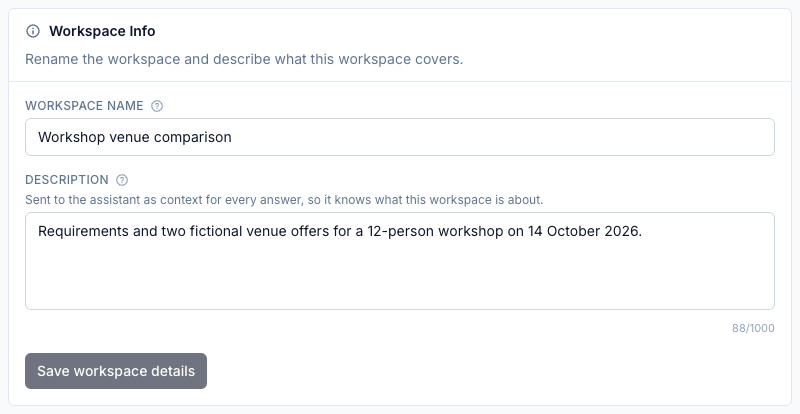
Info: name and description
Section titled “Info: name and description”Change Workspace name or Description, then select Save workspace details. The description is supplied to the assistant as context for every answer. For example:
Venue proposals and requirements for a 12-person team workshop on 14 October 2026.
Use the description for facts about the collection. Put instructions about how to answer in Assistant prompt.
Assistant: how research answers are produced
Section titled “Assistant: how research answers are produced”Open Assistant, change the relevant controls, then select Save assistant settings. Saved changes apply to new answers; you do not need to reindex documents.
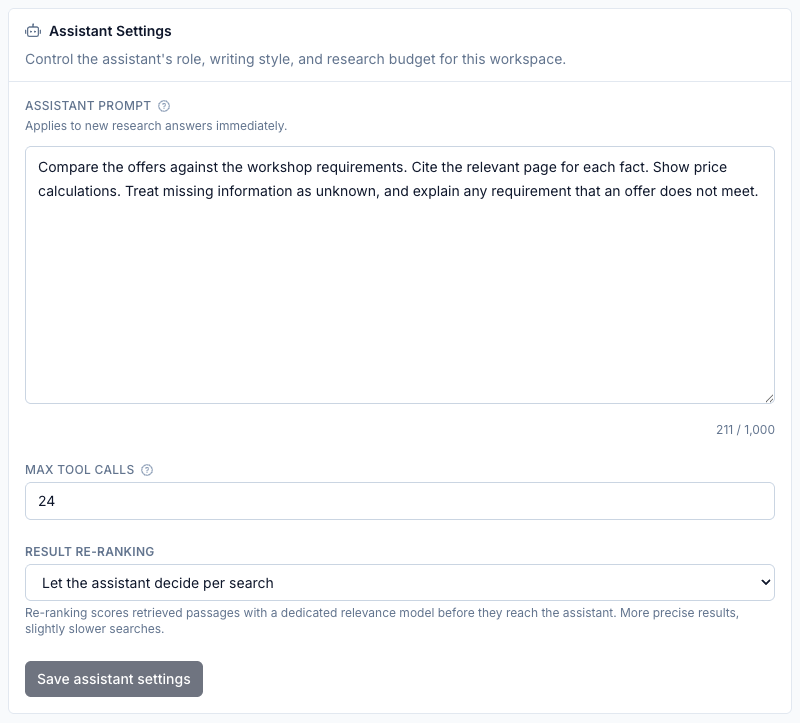
| Control | What it does | When to change it |
|---|---|---|
| Assistant prompt | Sets the assistant’s role, tone, and answer style alongside its fixed research rules. | Set instructions that should apply across conversations, such as citing comparisons and flagging missing evidence. |
| Max tool calls | Limits research tool calls for one answer. At the limit, the assistant must respond using the evidence gathered so far. | Increase it for tasks that need more searches or source inspection. More calls can take longer and consume more model usage. |
| Result re-ranking | Scores retrieved passages with a relevance model before they reach the assistant. | Refine search results at the cost of an additional processing step. |
Result re-ranking has three options:
- Let the assistant decide per search lets the assistant request re-ranking when needed.
- Always re-rank applies it to every search.
- Off skips the re-ranking step.
A useful assistant prompt for a comparison workspace is:
Answer from the documents in this workspace. Use a table for comparisons, cite important facts, and distinguish a missing detail from a confirmed requirement failure.
Select the chat model in Research. Available models depend on your account, organization, and deployment. See research and citations.
Indexing: how source content is read
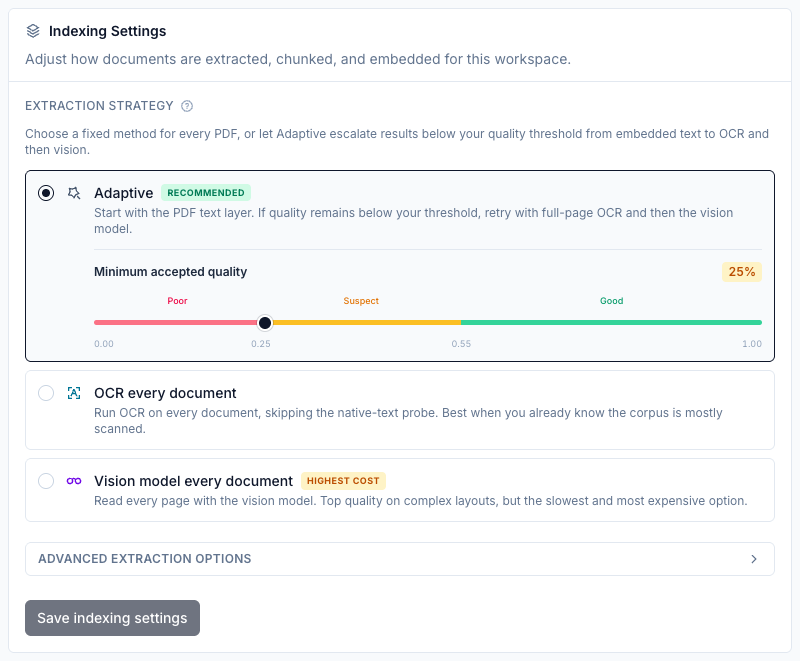
Section titled “Indexing: how source content is read”Open Indexing, choose an Extraction strategy, then select Save indexing settings.
| Strategy | What happens | Use it for |
|---|---|---|
| Adaptive | Starts with a PDF’s text layer, then retries with full-page OCR and finally a vision model if quality stays below the selected threshold. | A collection containing different kinds of PDFs. |
| OCR every document | Skips the initial native-text probe and runs optical character recognition. | A collection you know consists mostly of scans. |
| Vision model every document | Reads PDF pages visually. This is the slowest and most expensive strategy. | Difficult page layouts or damaged text layers. |
With Adaptive, the quality slider sets the minimum accepted extraction quality. A higher threshold can cause more retries with OCR or vision. The score helps identify extraction problems; it does not check whether the document’s claims are true.

Drag Minimum accepted quality to change the threshold. In this example it is 25%: a result scored 20% falls below the threshold and can trigger the next extraction tier; a result scored 40% meets it. Raise the threshold to request further processing for more documents. Select Save indexing settings to keep your change.
These PDF strategies are separate from the native parsers used for other supported file types. To change the method for one PDF, use File actions → Extraction method… in Documents. See document extraction methods.
Advanced extraction options
Section titled “Advanced extraction options”Expand Advanced extraction options to adjust text recovery, tables, and image handling. Options apply within the extraction tier that runs; full-page OCR takes effect only when OCR runs.
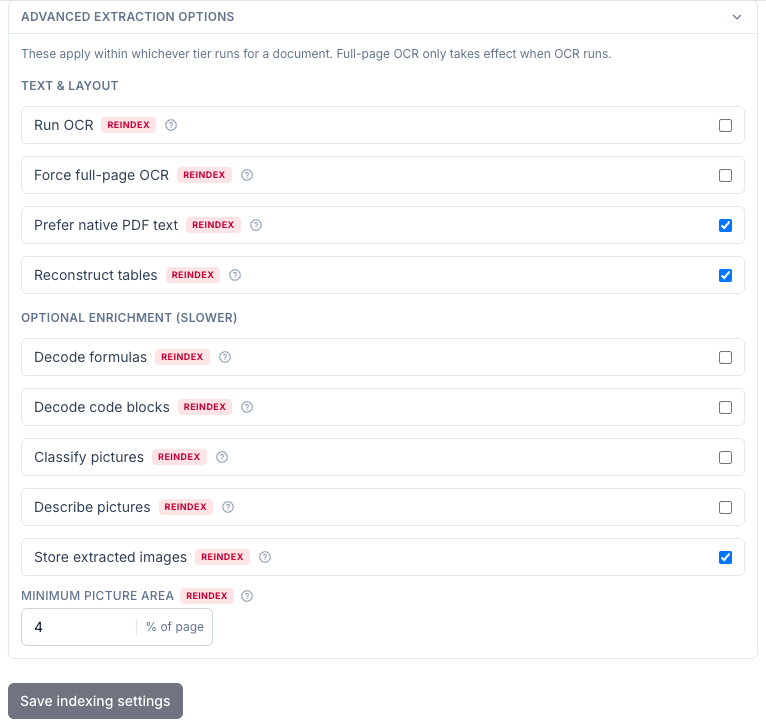
Checking Store extracted images reveals Minimum picture area. The example uses 4%, so pictures smaller than 4% of their page are excluded. The Reindex badges mean existing documents need reprocessing to use the changed option.
| Option | Effect and tradeoff |
|---|---|
| Run OCR | Reads text from image regions. Useful for scans, but adds work and can introduce recognition errors. |
| Force full-page OCR | Recognizes the whole page image. Useful for scans and broken text layers; usually unnecessary for clean digital PDFs. |
| Prefer native PDF text | Prefers embedded PDF text over reconstructed text. Useful when the original text layer is clean. |
| Reconstruct tables | Preserves table rows and structure instead of flattening them into text. Adds processing for table-heavy documents. |
| Decode formulas | Converts detected formulas into Markdown math. Requires the relevant extraction models and adds processing time. |
| Decode code blocks | Preserves detected code as fenced code blocks. May require additional model artifacts. |
| Classify pictures | Records the type of detected images and figures in extraction metadata. |
| Describe pictures | Generates descriptions of visual content to help retrieval. Adds processing and may require vision model artifacts. |
| Store extracted images | Saves detected pictures for document analysis and visual retrieval. Uses additional object storage. |
| Minimum picture area | When images are stored, excludes pictures below the selected percentage of page area. Raise it to skip tiny scanner artifacts; lower it to retain small figures. |
Apply changes to existing documents
Section titled “Apply changes to existing documents”Saving extraction settings does not automatically replace the content already indexed for every document. To apply the new settings:
- Select Save indexing settings.
- Open Documents and find the affected files.
- For one file, open File actions → Reindex. For several files, select their checkboxes and use Reindex selected in the selection actions.
- Wait for Completed, then inspect the extracted content again.
Files with an explicit extraction-method override keep that choice. Select Workspace default when a file should follow the workspace strategy. Reindexing may replace manual edits to indexed chunks, so keep source corrections in the original document where possible.
Members: who can use the workspace
Section titled “Members: who can use the workspace”Open Members to review or assign workspace access. Workspace Member allows viewing and research; Workspace Manager adds document, settings, and member management. Organization roles can also grant access. See organizations and collaboration.
Danger Zone: transfer or remove data
Section titled “Danger Zone: transfer or remove data”| Action | Effect |
|---|---|
| Transfer to an organization | Changes a personal workspace to organization ownership. Review the destination organization’s membership first. |
| Delete index | Removes indexed content while keeping uploaded sources. Documents need to be indexed again for research. |
| Delete workspace | Permanently removes the workspace and its data, including sources and conversations. |
Review the impact displayed by the application before confirming any of these actions.